簡介:
在日常工作和學習中,我們可能需要查找和提取PDF文件中的特定內容。本文將介紹如何使用Python編程語言和wxPython圖形用戶界面庫來實現一個簡單的PDF內容搜索工具。我們將使用PyMuPDF模塊來處理PDF文件,并結合wxPython構建一個用戶友好的界面。
C:\pythoncode\new\pdffindcontent.py
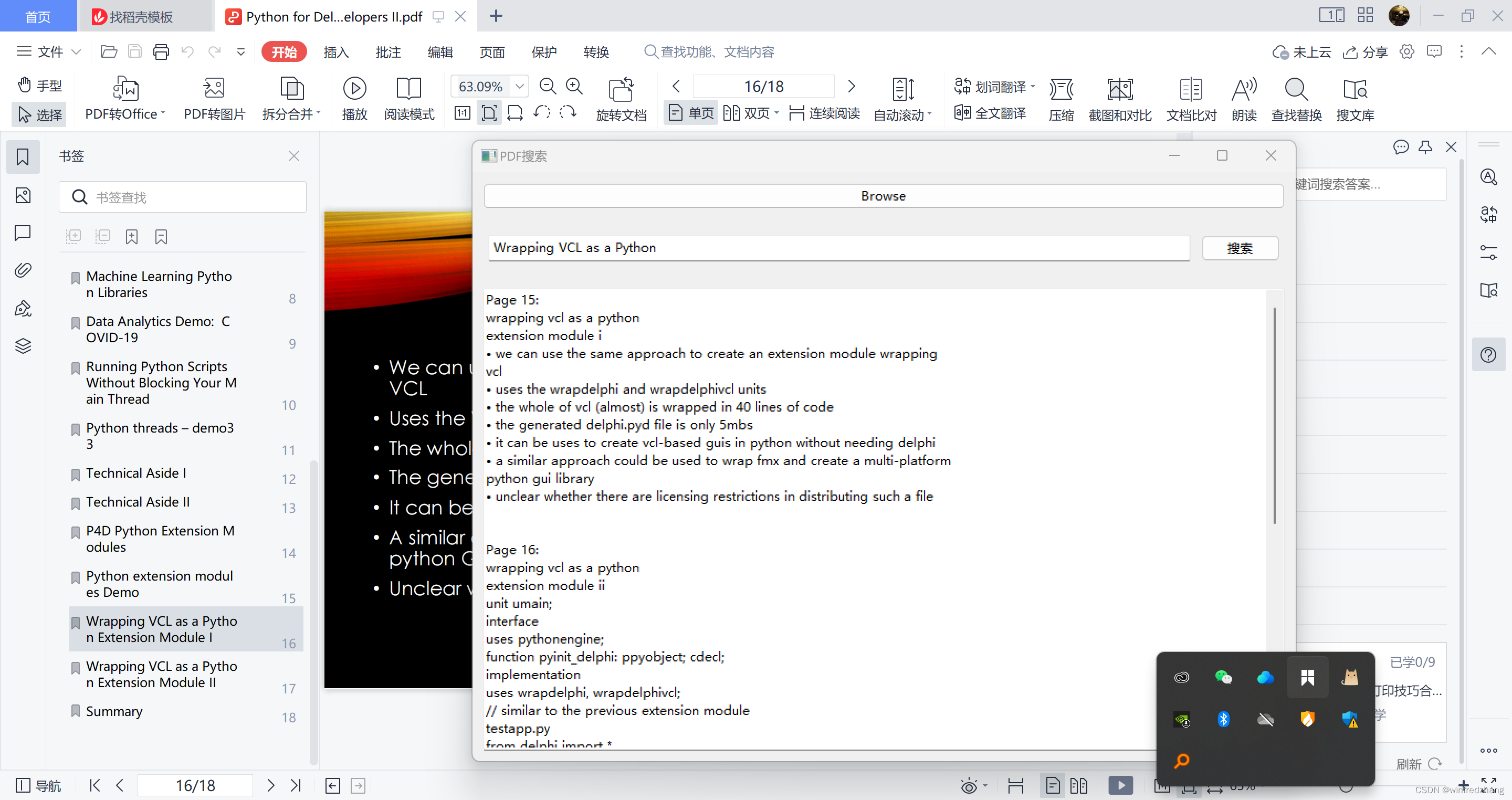
準備工作
在開始之前,請確保已經安裝了Python和相應的模塊。可以使用pip來安裝wxPython和PyMuPDF模塊,具體安裝方法可以參考官方文檔。
創建GUI界面
我們首先需要創建一個GUI界面,以便用戶選擇要搜索的PDF文件并輸入要查找的內容。我們使用wxPython庫來創建界面。
def __init__(self, parent, title):super(PDFSearchFrame, self).__init__(parent, title=title, size=(800, 600))panel = wx.Panel(self)vbox = wx.BoxSizer(wx.VERTICAL)# 選擇文件按鈕file_picker = wx.FilePickerCtrl(panel, style=wx.FLP_OPEN|wx.FLP_FILE_MUST_EXIST)file_picker.Bind(wx.EVT_FILEPICKER_CHANGED, self.on_file_selected)vbox.Add(file_picker, 0, wx.EXPAND|wx.ALL, 10)# 輸入框和按鈕hbox = wx.BoxSizer(wx.HORIZONTAL)self.search_text = wx.TextCtrl(panel)search_button = wx.Button(panel, label='搜索')search_button.Bind(wx.EVT_BUTTON, self.on_search)hbox.Add(self.search_text, 1, wx.EXPAND|wx.ALL, 5)hbox.Add(search_button, 0, wx.ALL, 5)vbox.Add(hbox, 0, wx.EXPAND|wx.ALL, 10)# 顯示框self.display_text = wx.TextCtrl(panel, style=wx.TE_MULTILINE|wx.TE_READONLY)vbox.Add(self.display_text, 1, wx.EXPAND|wx.ALL, 10)panel.SetSizer(vbox)self.Show()
在上述代碼中,我們創建了一個名為PDFSearchFrame的窗口類,它繼承自wxPython的wx.Frame類。在該類的構造函數中,我們創建了界面的各個組件,包括選擇文件按鈕、輸入框和搜索按鈕以及顯示框。
PDF內容搜索和提取
接下來,我們需要在代碼中添加PDF內容搜索和提取的功能。我們將使用PyMuPDF模塊來處理PDF文件。
# 導入所需模塊
import wx
import fitzdef on_search(self, event):search_text = self.search_text.GetValue()if not search_text or not self.pdf_path:returndoc = fitz.open(self.pdf_path)matches = []for page in doc:text = page.get_text().lower()if search_text.lower() in text:matches.append((page.number, text))self.display_text.SetValue('')if matches:for page_num, text in matches:self.display_text.AppendText(f"Page {page_num}:\n{text}\n\n")else:self.display_text.AppendText("未找到匹配的內容。")doc.close()在上述代碼中,我們在on_search方法中添加了PDF內容搜索和提取的代碼。首先,我們使用fitz.open函數打開選擇的PDF文件,并遍歷每一頁的文本內容。然后,我們將文本內容轉換為小寫,并檢查搜索文本是否在其中。如果找到合適的匹配項,我們將它們存儲在matches列表中。最后,我們將匹配的結果顯示在顯示框中,如果沒有找到匹配的內容,則顯示相應的提示信息。
全部代碼
import wx
import fitzclass PDFSearchFrame(wx.Frame):def __init__(self, parent, title):super(PDFSearchFrame, self).__init__(parent, title=title, size=(800, 600))panel = wx.Panel(self)vbox = wx.BoxSizer(wx.VERTICAL)# 選擇文件按鈕file_picker = wx.FilePickerCtrl(panel, style=wx.FLP_OPEN|wx.FLP_FILE_MUST_EXIST)file_picker.Bind(wx.EVT_FILEPICKER_CHANGED, self.on_file_selected)vbox.Add(file_picker, 0, wx.EXPAND|wx.ALL, 10)# 輸入框和按鈕hbox = wx.BoxSizer(wx.HORIZONTAL)self.search_text = wx.TextCtrl(panel)search_button = wx.Button(panel, label='搜索')search_button.Bind(wx.EVT_BUTTON, self.on_search)hbox.Add(self.search_text, 1, wx.EXPAND|wx.ALL, 5)hbox.Add(search_button, 0, wx.ALL, 5)vbox.Add(hbox, 0, wx.EXPAND|wx.ALL, 10)# 顯示框self.display_text = wx.TextCtrl(panel, style=wx.TE_MULTILINE|wx.TE_READONLY)vbox.Add(self.display_text, 1, wx.EXPAND|wx.ALL, 10)panel.SetSizer(vbox)self.Show()def on_file_selected(self, event):self.pdf_path = event.GetPath()def on_search(self, event):search_text = self.search_text.GetValue()if not search_text or not self.pdf_path:returndoc = fitz.open(self.pdf_path)matches = []for page in doc:text = page.get_text().lower()if search_text.lower() in text:matches.append((page.number, text))self.display_text.SetValue('')if matches:for page_num, text in matches:self.display_text.AppendText(f"Page {page_num}:\n{text}\n\n")else:self.display_text.AppendText("未找到匹配的內容。")doc.close()if __name__ == '__main__':app = wx.App()PDFSearchFrame(None, title="PDF搜索")app.MainLoop()
運行程序
完成以上步驟后,我們可以保存并運行這個程序。一個具有搜索功能的PDF內容搜索工具的窗口將會彈出。我們可以選擇要搜索的PDF文件,輸入要查找的內容,并點擊搜索按鈕。程序將會將匹配的結果顯示在顯示框中,包括找到的頁面號和相應的文本內容。
總結:
本文介紹了如何使用Python和wxPython庫來實現一個簡單的PDF內容搜索工具。通過結合PyMuPDF模塊和wxPython圖形界面,我們能夠方便地選擇PDF文件,并在輸入框中輸入要查找的內容。程序將搜索匹配的內容,并將找到的頁面內容提取到顯示框中。這個工具可以幫助我們快速查找和提取PDF文件中的特定內容,提高工作效率。
關鍵詞:Python、wxPython、PDF、內容搜索、PyMuPDF

)


)


![[Mongodb 5.0]單機啟動](http://pic.xiahunao.cn/[Mongodb 5.0]單機啟動)


